
What this guide will help you do
You can place a manual Connect order using artwork already saved to your account, or upload a one-off design without adding it to your Artwork library first.
Choose an existing design from your Artwork page.
Upload a new or personalised design directly into an order.
Add the delivery address, envelope colour and postage service before ordering.
Order a design already saved in Connect
Find the design
Open Artwork and find the card you want to order. Click Order this Card beside the design.
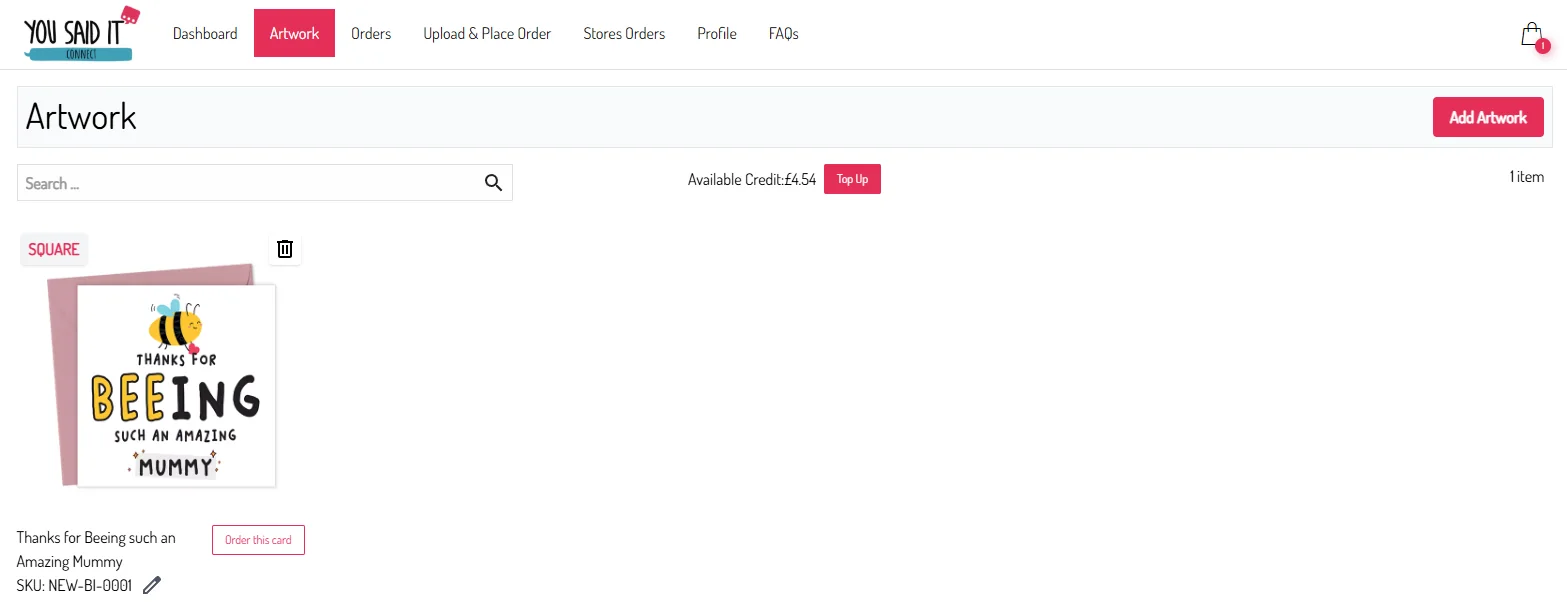
Open your cart
The card will be added to your cart. When you’re ready to continue, click the shopping cart icon in the top-right of the dashboard.
Complete the order details
On the Cart page, choose the envelope colour, enter the delivery address and select the postage option you want to use.
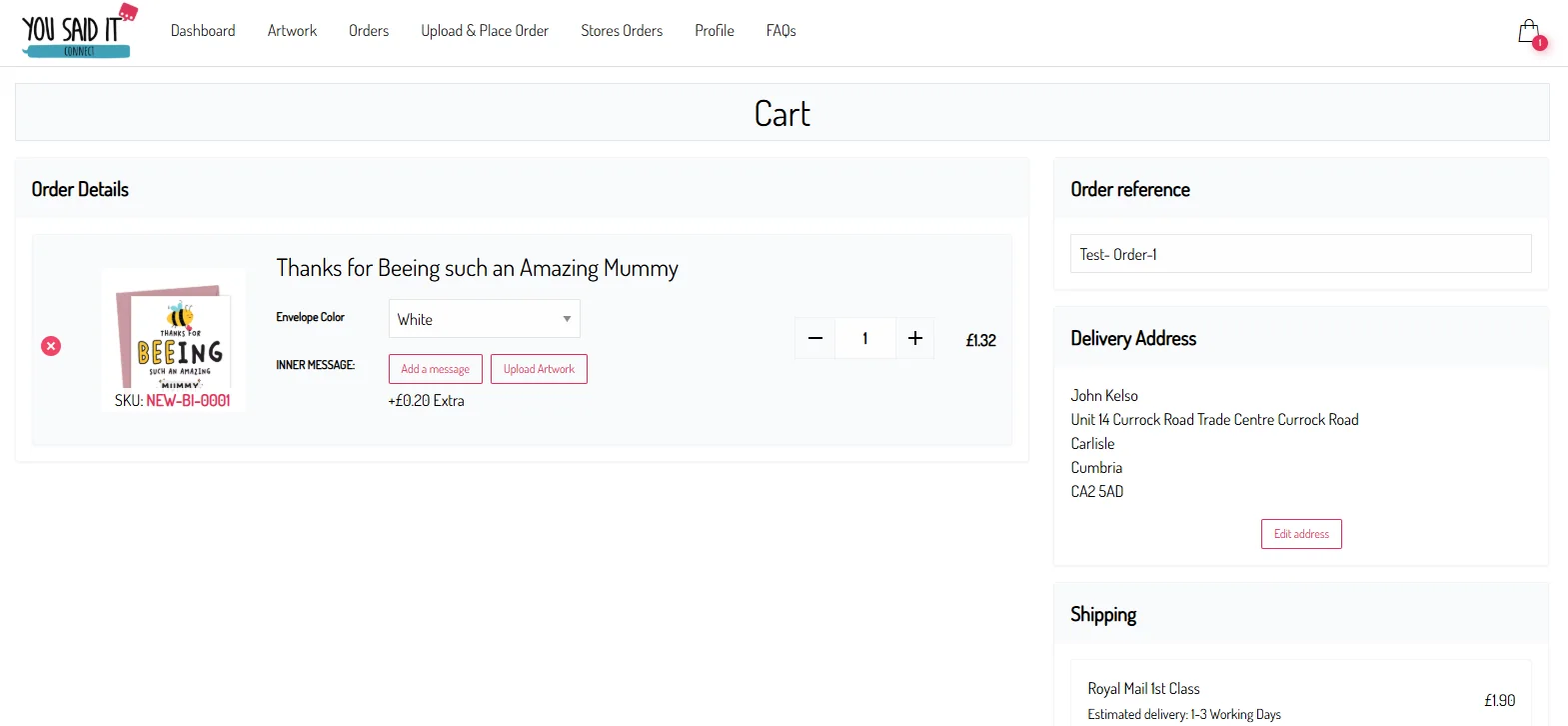
Click Add a message or Upload Artwork. See our How to Add an Inner Message guide for the full steps.
Place the order
Once everything has been checked and you’ve chosen the shipping option, click Place Order.
Place a one-off order
If you need to order a one-off design or personalised card, you can upload it directly into an order without saving it to your Artwork library first.
Open Upload & Place Order
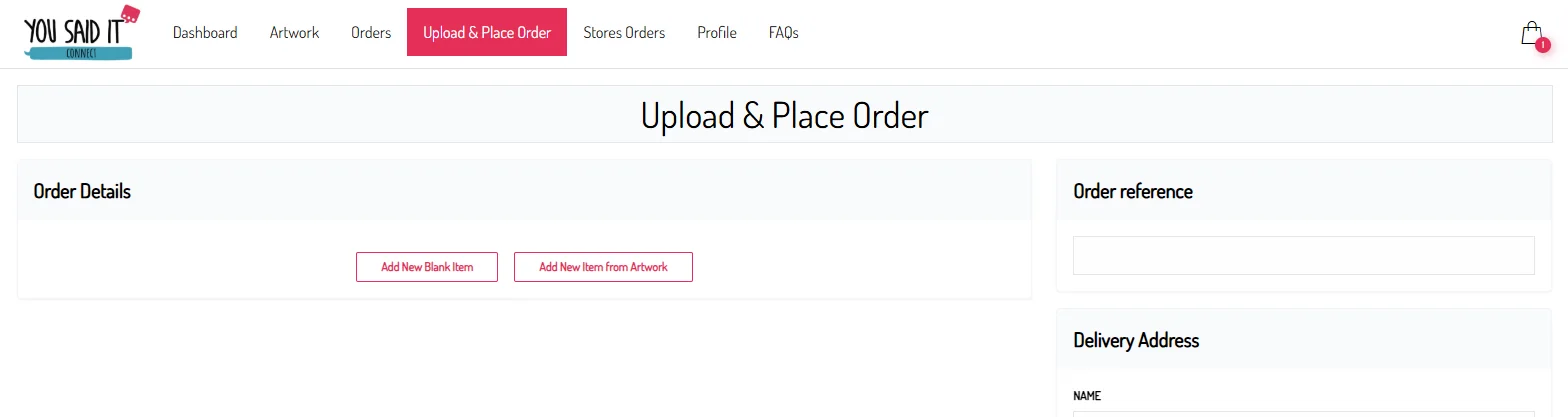
Choose Upload & Place Order from the dashboard menu.
Add a blank item
Click Add New Blank Item to create a new card line in the order.
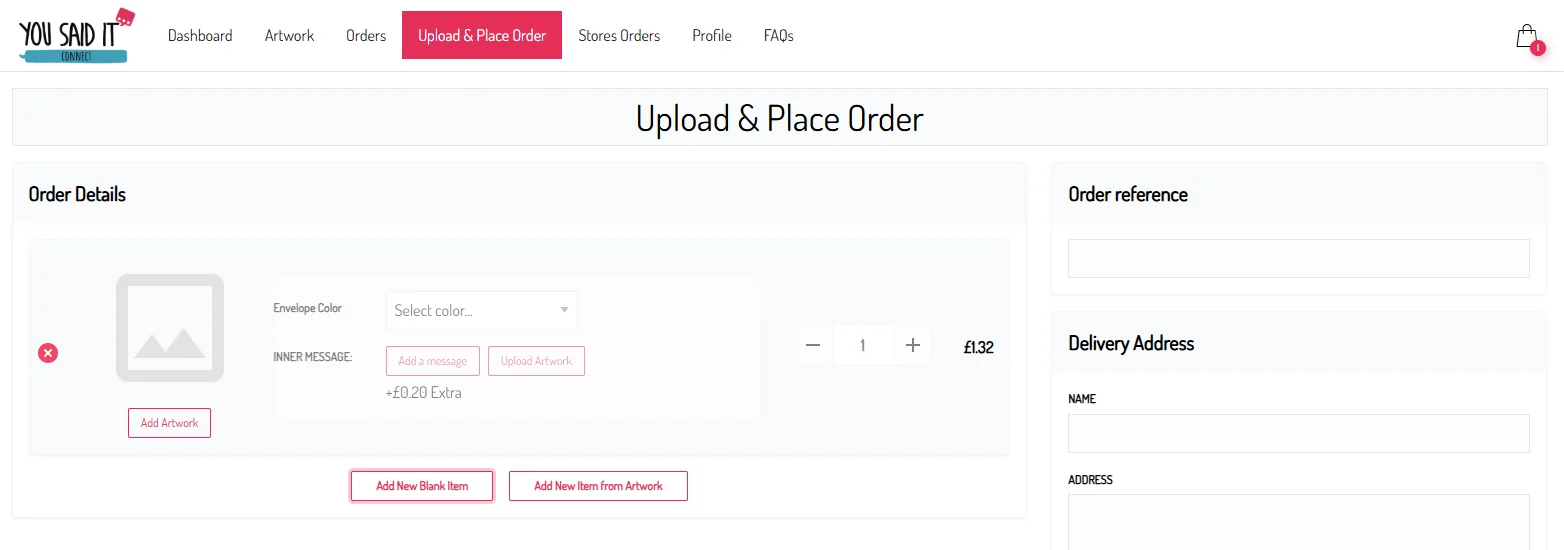
Upload the artwork
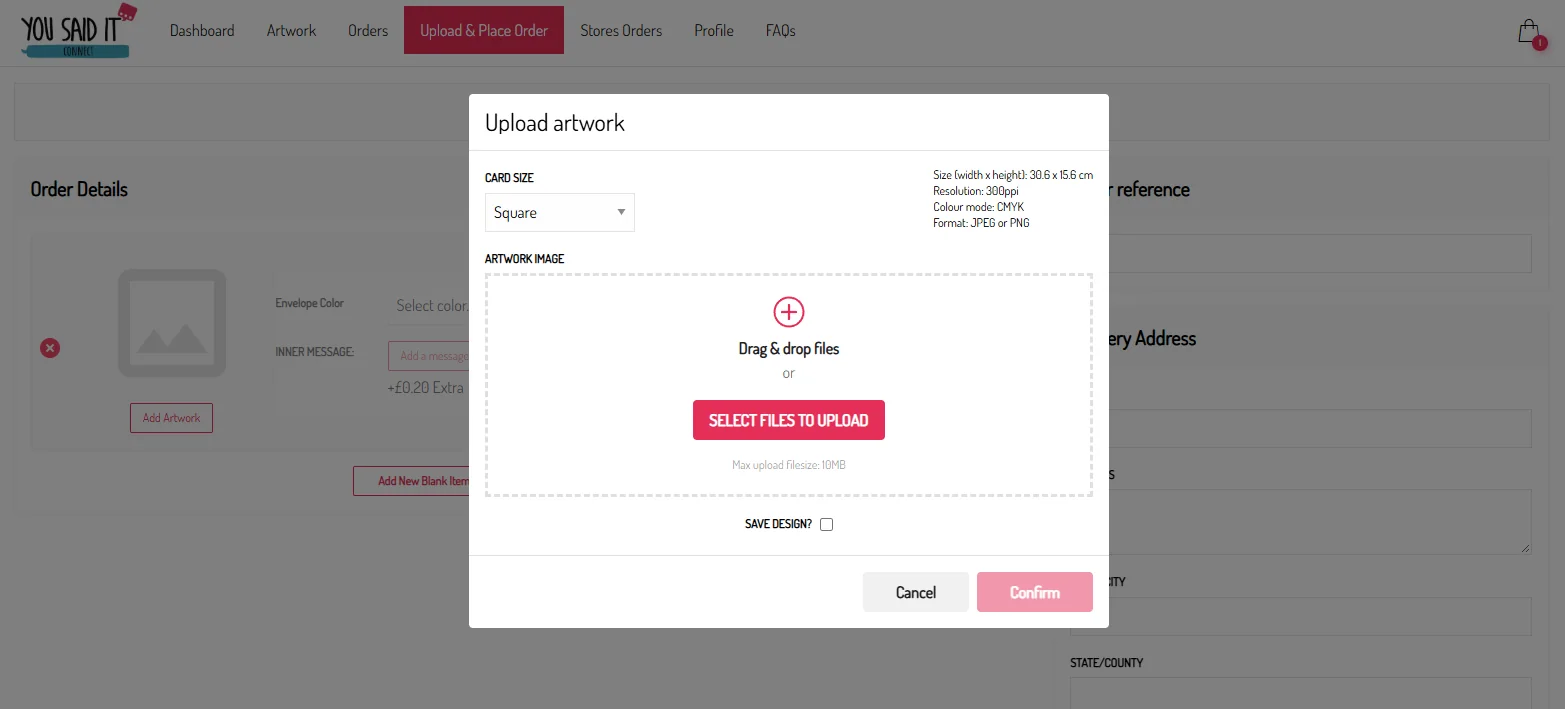
Click Add Artwork. In the pop-up, choose the correct card size and upload your print-ready file.
Confirm or save the design
Once the artwork has uploaded, click Confirm. If you’d also like to keep the design in your Artwork library for future orders, select the option to save the design.
Add any additional cards
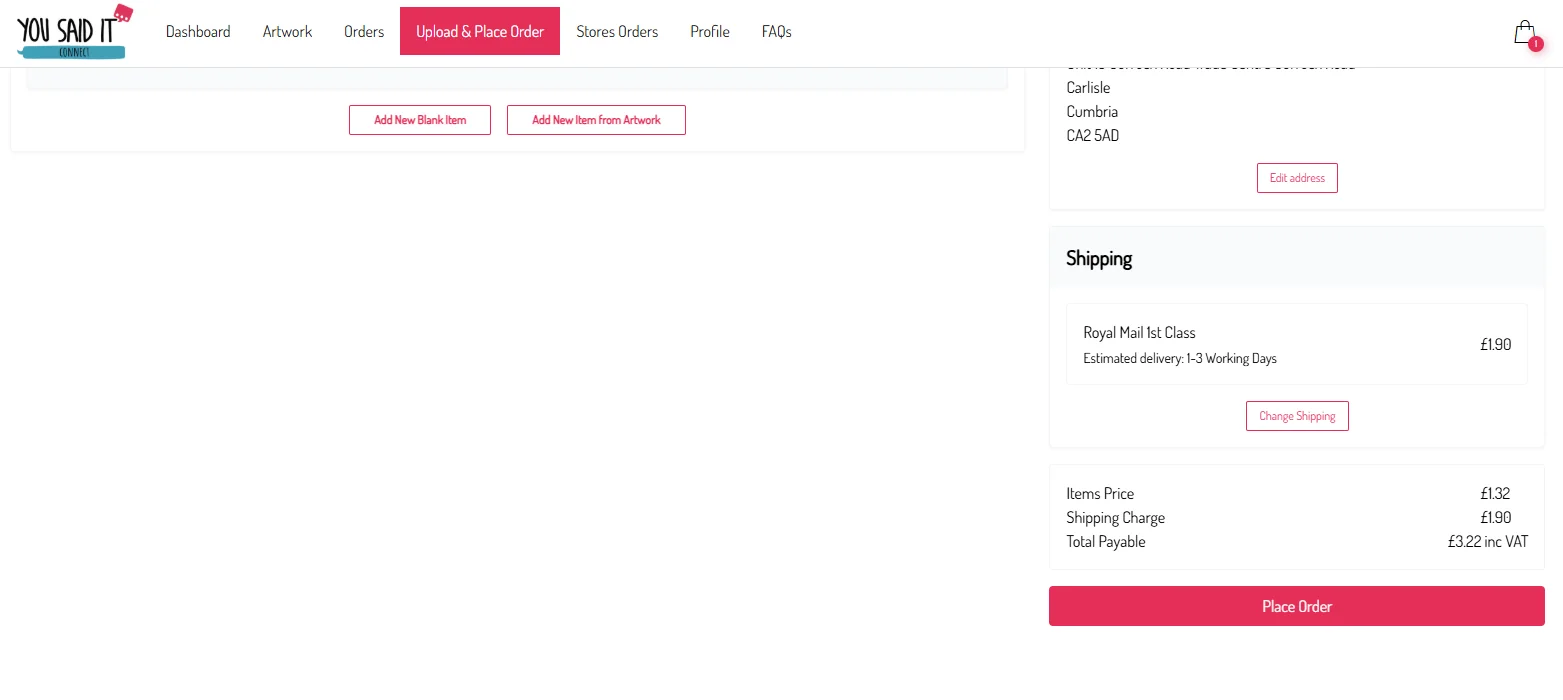
To upload another one-off design, click Add New Blank Item again. You can also add a design already saved in Connect by choosing Add New Item From Artwork.
Complete the delivery details and order
Enter the delivery address, choose the shipping option and check the order details. When everything is correct, click Place Order.
Helpful tips
If you expect to order the same card again, keeping it in your Artwork library makes future orders quicker.
Upload & Place Order is useful when the artwork changes for each customer.
Review the recipient details carefully before placing the order.
Make sure the selected service matches the delivery option you want for that customer.
You’re ready
Before placing the order, check that each of these is complete.