
What this guide will help you do
By the end of this guide, your eBay account will be linked to Connect and you’ll know how to sync, review and send an imported order to print.
Securely authorise You Said It Connect through eBay.
Bring eligible eBay orders into the Store Orders area.
Use SKUs to select artwork automatically, then review and place the order.
Before you start
A few quick checks will make the connection and order-processing steps much smoother.
You’ll be redirected to eBay to sign in and approve access.
Connect can only match an order automatically when the artwork is already saved.
The SKU in eBay should exactly match the SKU saved against the artwork in Connect.
Set your usual envelope colour and postage option to speed up order processing.
Connect your eBay store
Open the Link Store page
From your Connect dashboard, open Profile and select Link Store. You’ll see the available store integrations.
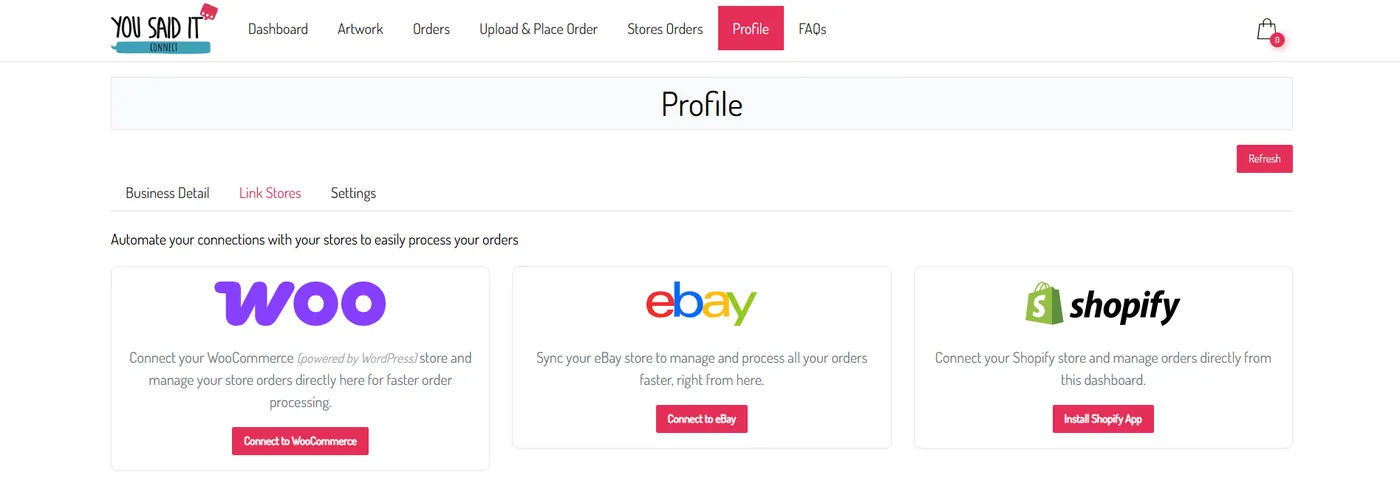
Choose Connect to eBay
Click Connect to eBay. You’ll be taken to the eBay sign-in page. Sign in using the account for the store you want to link.

Approve access
eBay will ask you to grant access to You Said It Connect. Review the request and click the blue Agree button.
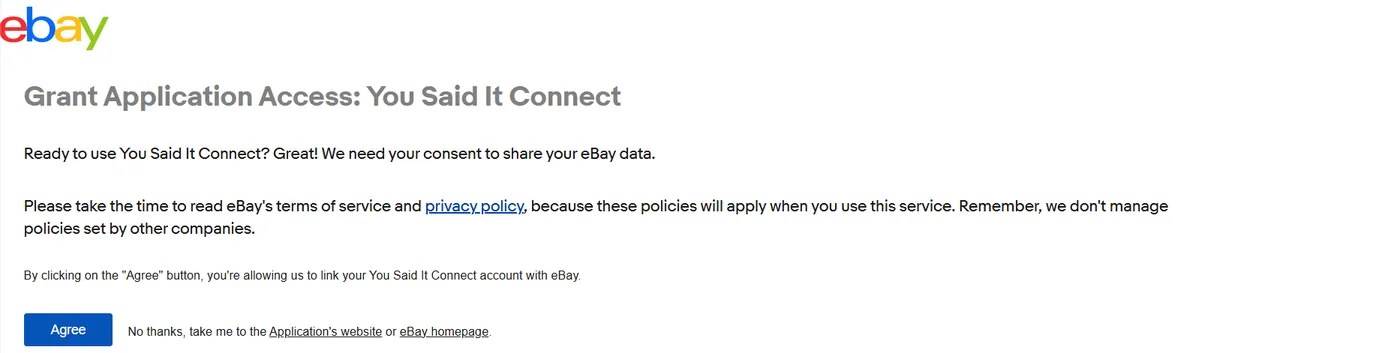
You can remove the connection later from your account settings if needed.
Sync and open an order
Go to Store Orders
After eBay sends you back to Connect, open Store Orders from the top menu. This is where connected-store orders are managed.
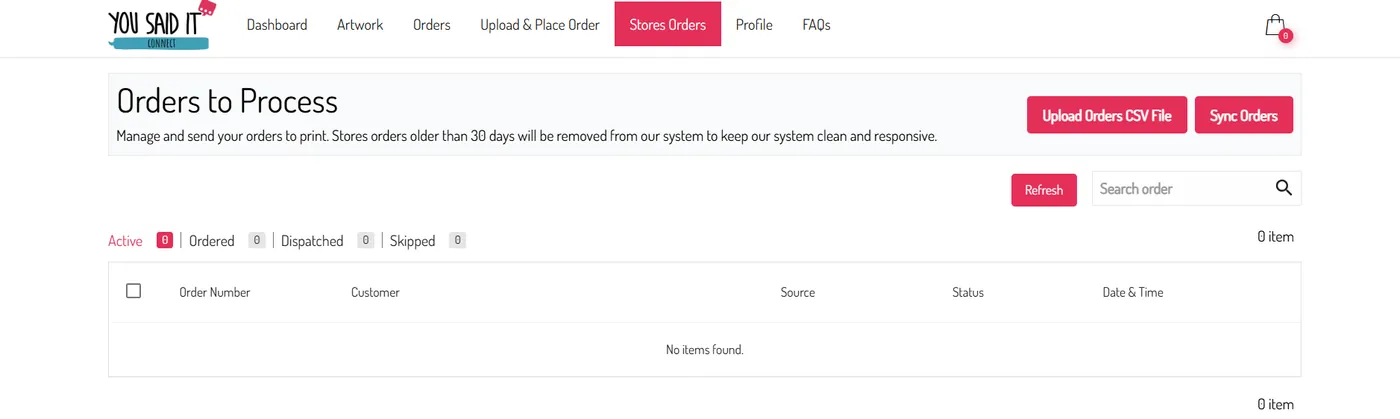
Sync your eBay orders
Click Sync Orders. Connect will pull in eligible processing orders from your linked eBay store.

Check that it has the correct status in eBay, then wait a few minutes and sync again.
Open the order for processing
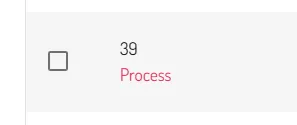
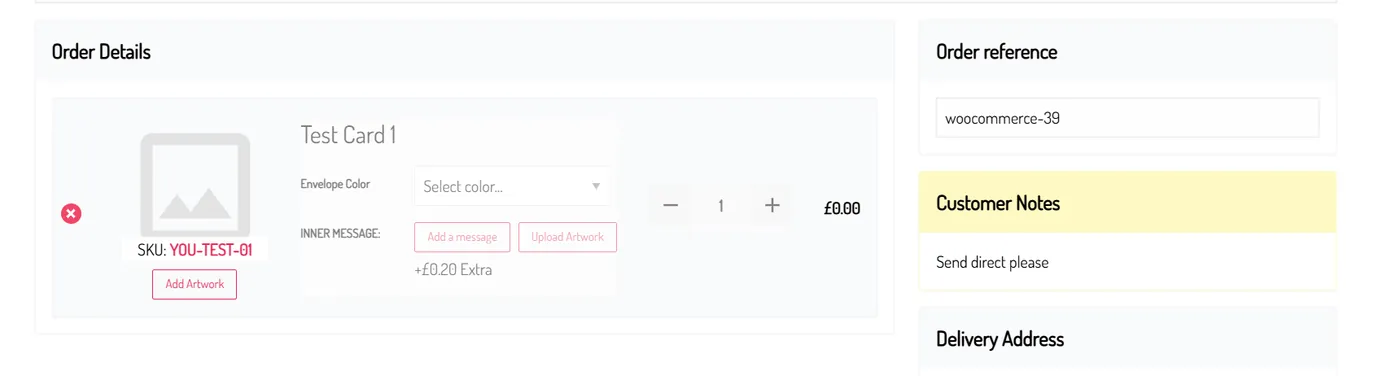
Hover over the order number and click Process. The order details will open so you can review the card, delivery information and customer notes.
Check the artwork and place the order
Confirm the artwork match
When the eBay SKU matches artwork saved in Connect, the correct file is selected automatically. If no match is found, choose or upload the artwork manually.
Always visually check that the selected artwork matches the customer’s order before placing it.
Review the envelope, postage and total
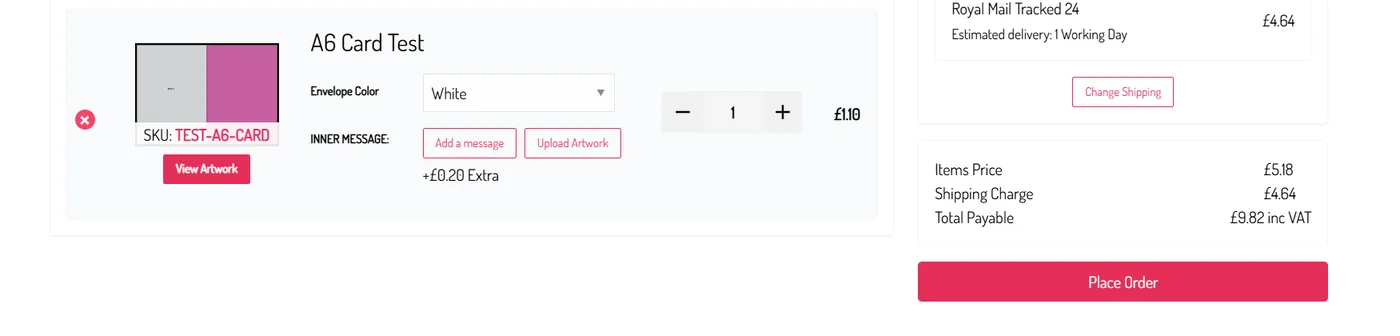
Check that the correct envelope colour and delivery option are selected. When everything is correct, click Place Order to send it to print.
Remove or skip anything that should not be printed
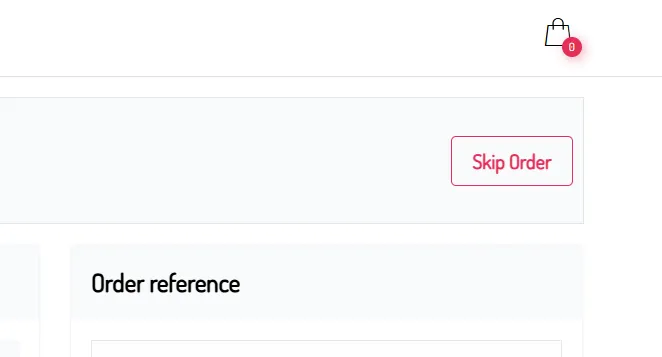
If one item is not a greeting card requiring fulfilment, click the red X beside that item. If the whole order should not be printed, click Skip Order.
Helpful tips before you connect
Matching eBay SKUs to artwork uploaded in Connect helps the system select the correct card automatically.
Always review the artwork, envelope, delivery option and customer details before sending an order to print.
Skip an order only when it does not need to be fulfilled through Connect.
Clear artwork titles and consistent SKU naming make order matching much easier.
You’re ready to fulfil eBay orders
Before sending your first live order to print, check that each of these is complete.